Windows
System Requirements
- Operating System: Windows 10/11
- Hardware: Nvidia 4090 or higher GPU (GPUs other than Nvidia are not supported)
- Software: Graphics card driver, Docker Desktop
- Disable hibernation: Ensure that the system's automatic shutdown and automatic hibernation settings are turned off (you can still turn off the monitor), so that your machine remains online at all times.
- Disable automatic updates: It is recommended to disable automatic updates for the system (mainly GPU drivers and operating system updates), so that your machine will not interrupt running client jobs, thus affecting your earnings.
- Administrator privileges are required to run this installation program.
IMPORTANT: To update your NVIDIA GPU driver, please exit Docker Desktop first, then restart your computer after the driver update.
Network Requirements
- Able to access the internet normally with stable upload and download bandwidth. (Download bandwidth >= 200mbps, Upload bandwidth >= 10mbps)
- If there is a firewall, the following IPs and domains need to be added to the whitelist:
35.206.104.18735.212.166.168nicegpucr.azurecr.io
Video Introduction
Watch the video below to learn how to add your GPU to our platform.
Detailed Steps
Before you start, ensure that your hardware meets the above requirements.
1. Update Graphics Card Driver to the Latest Version
Download and install the latest driver from the Nvidia website.
2. Download and Install
Note: If you encounter any errors or issues during installation, try running the installer again.
-
Click https://ntc.svc-usw1.nicegpu.com/agent/nicegpu-installer.exe to download the installer.
-
Double-click to run the installer, enter the
tokeninformation, follow guide to start the installation.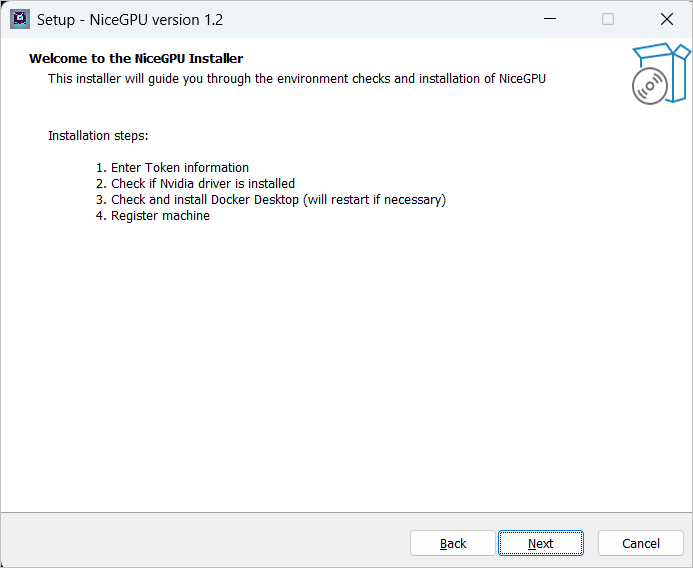
-
Wait for the installation to complete.
The NiceGPU Agent depends on
Docker Desktop. You can refer to the Docker documentation to install it yourself, or our installer will do it automatically for you.If you have not installed
Docker Desktop, we will automatically download and install the latest version ofDocker Desktop.Installing
Docker Desktoprequires a system restart. Follow the prompts to restart your computer.
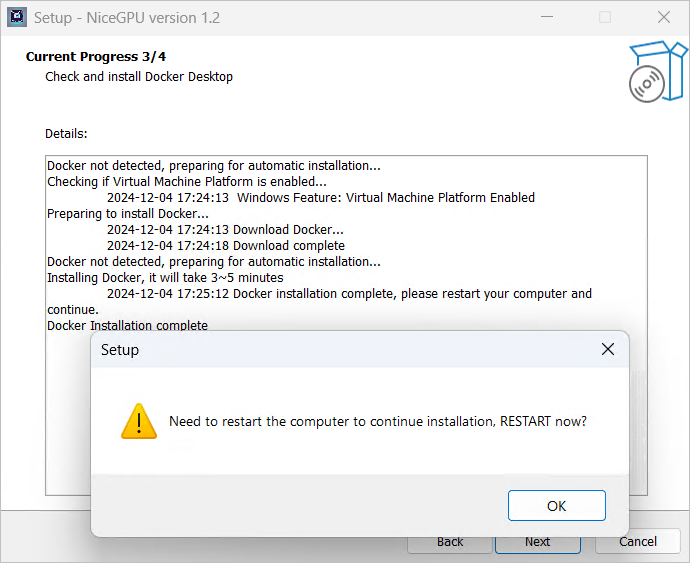
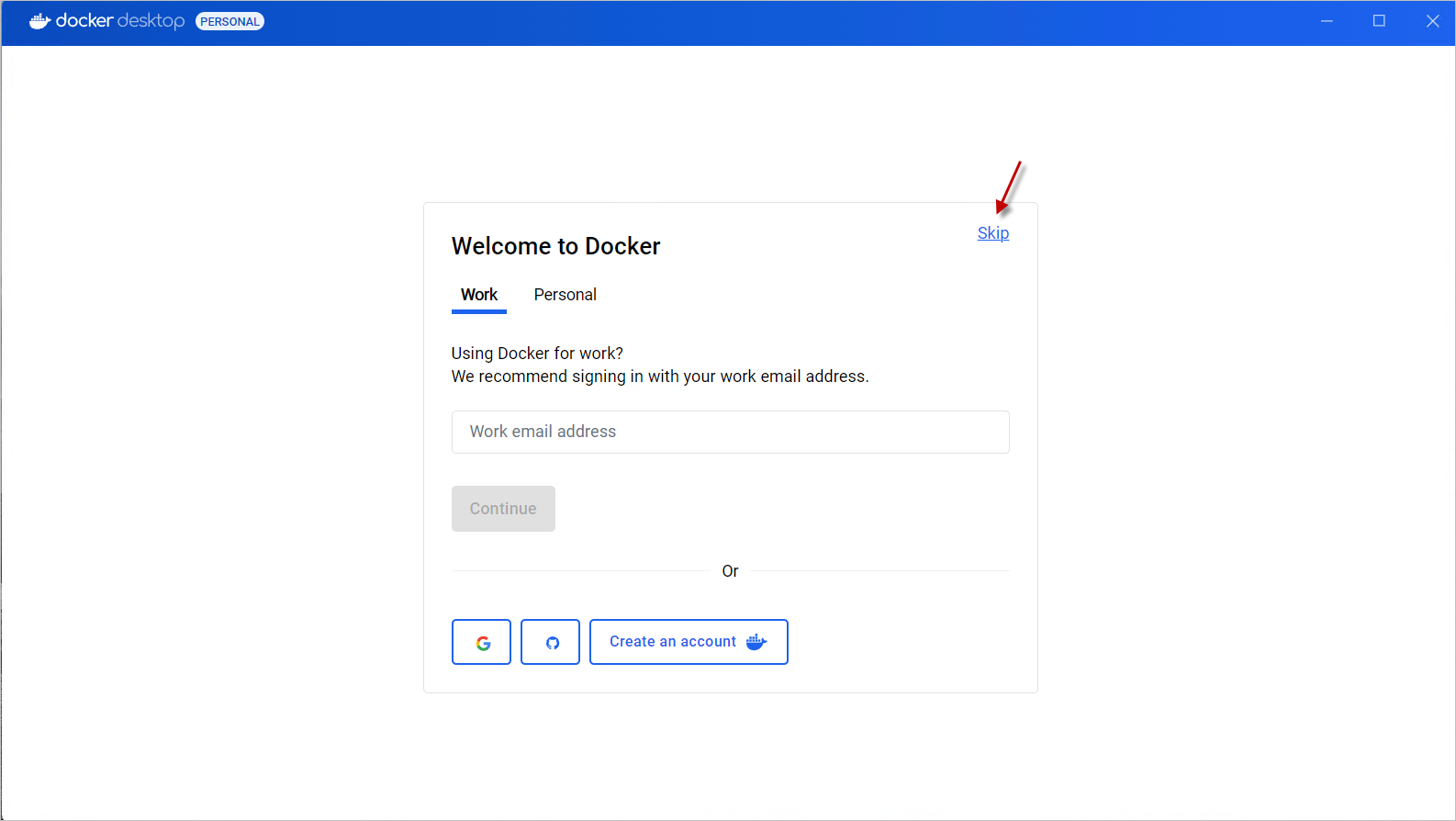
Regarding the settings of
Docker Desktop, you can click the "Skip" button, which will not affect the actual usage.
-
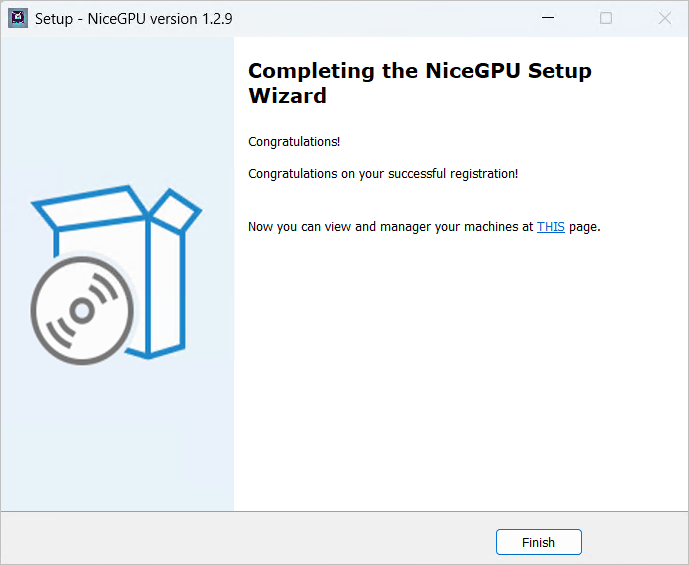
Complete the Installation
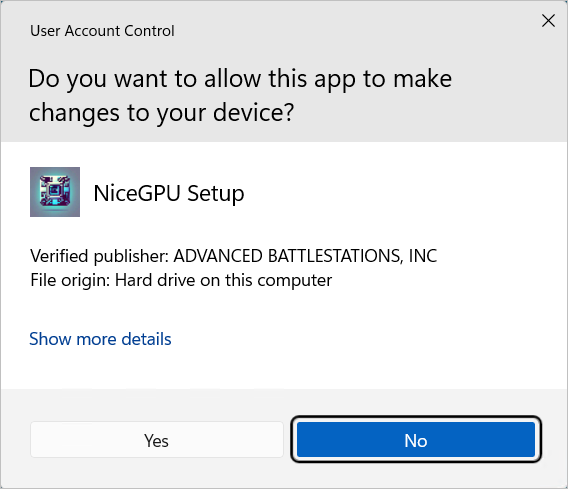
After restarting your computer, the installation program will start automatically. Please follow the prompts to complete the installation. (If you accidentally clicked the No button? Simply rerun the installation program.)
Once you see the success message
### Congratulations on your successful registration! ###, you can visit the NiceGPU Workspace to view and manage your machine.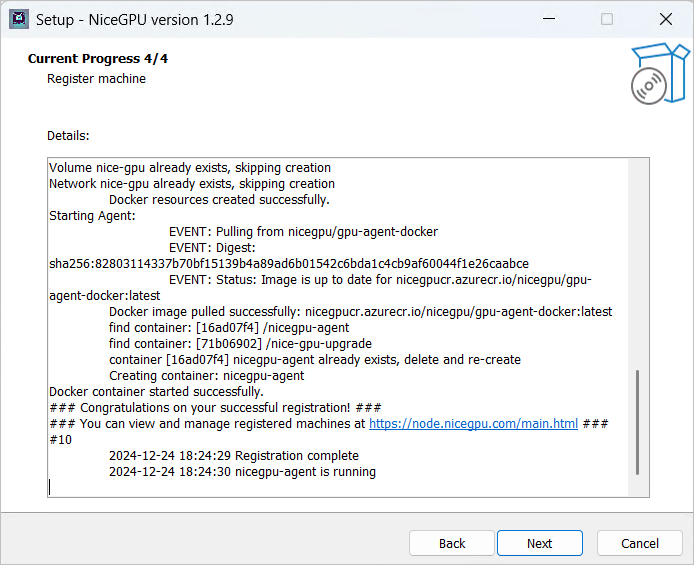
3. Need Support
- For common issues, please refer to the FAQ document
- If you encounter other errors, try running the installer again!
- You can also seek help in the Reddit r/nicegpu: https://www.reddit.com/r/nicegpu/, and we will respond as soon as possible.