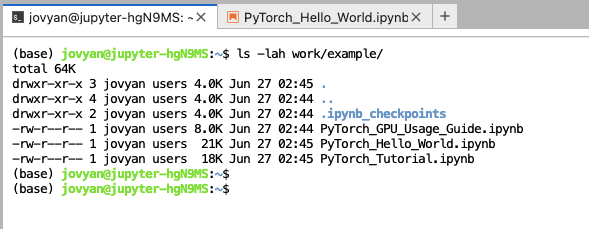
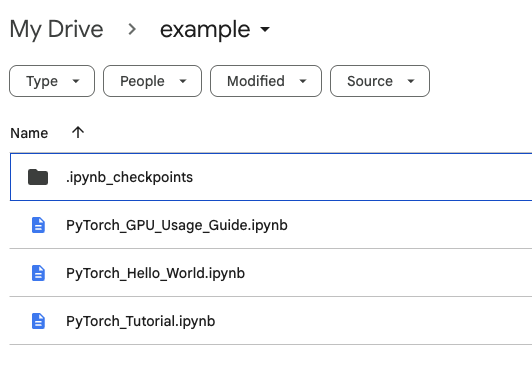
Cloud Sync
Connect to Google Drive
Prerequisites: You have an active Google Drive account.
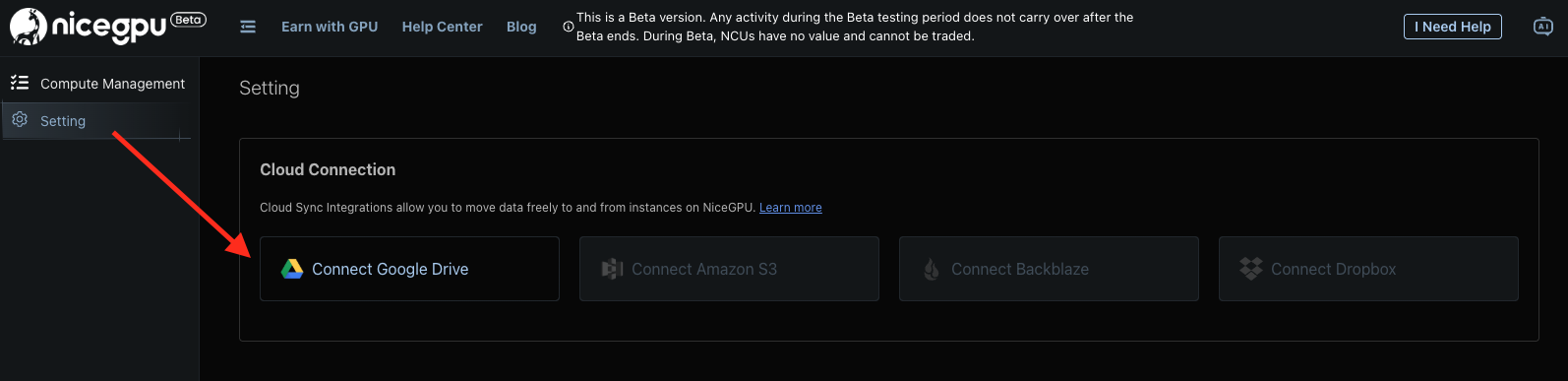
- Navigate to your NiceGPU
Settingspage. - On the left side of the page, you will see a button labeled "Connect to Google Drive".
- Provide a name for your Google Drive integration.
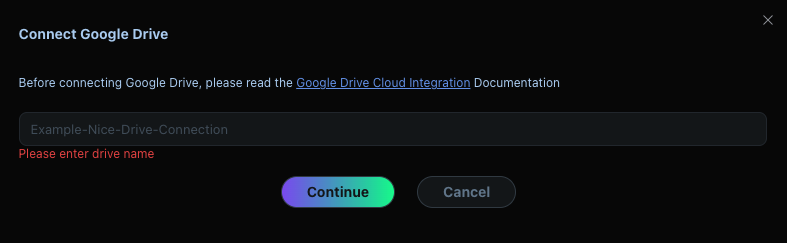
- After submitting the name, a new tab will open asking if you want to grant NiceGPU access to your Google Drive.
- Once you accept the authorization prompt, you will be redirected back to NiceGPU, and your Google Drive will be fully integrated.
Now that you've connected your Google Drive to NiceGPU, you can move data between your instance and Google Drive.
Usage
- Go to your NiceGPU instance list page, and locate the instance where you need to transfer data.
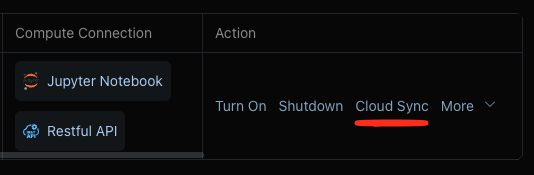
- Click on the Cloud Sync button.
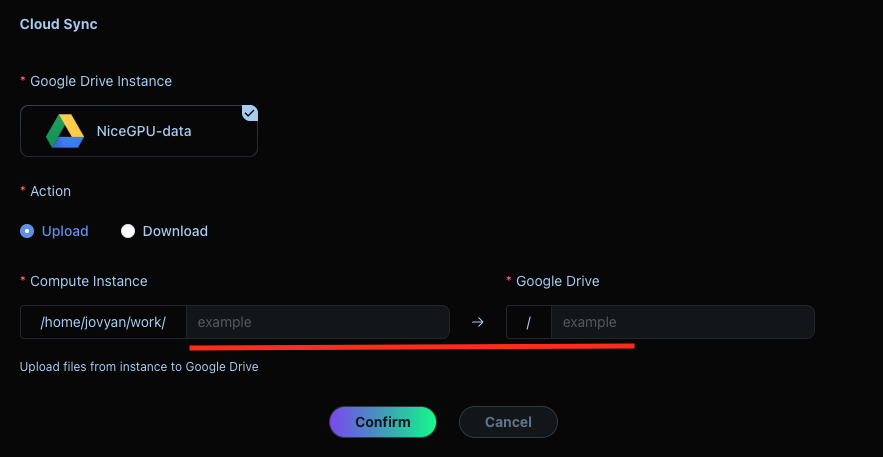
- Set the directory you want to synchronize.
- View the synchronization status.

- Confirm the sync results.