Frequently Asked Questions
Install Software
1. What are the hardware and software requirements?
- Hardware requirements: An NVIDIA RTX 4070 Ti SUPER or higher graphics card (non-NVIDIA graphics cards are not currently supported).
- Software requirements: Graphics card drivers and Docker Desktop.
2. Are there any requirements for the system version?
Our Agent program only depends on Docker Desktop (with WSL2 backend). Therefore, once you have successfully installed Docker Desktop, you can run the Agent program normally.
For the system requirements of Docker Desktop, please refer to the official Docker Desktop documentation.
3. Does the installer need to be run with administrator privileges?
Yes, the installer must be run with administrator privileges. If Nicegpu-installer.exe isn’t run with these privileges, a prompt will appear.
4. Do I need to disable hibernation mode?
Yes, please ensure that your system's automatic shutdown and sleep settings are disabled (you can still turn off the display) , so that your machine remains online at all times.
5. Do I need to disable automatic updates?
Yes, it's recommended to disable automatic system updates (especially for graphics drivers and the operating system) , so that your machine doesn't interrupt any running client tasks, which could affect your earnings.
6. During registration, i need to fill in a token. Where can I find it?
You can find the token on the node registry page. Click the copy icon on the right to copy it to your clipboard.
7. How can I determine if the Agent is installed successfully?
You can use any of the following methods to determine if the installation was successful:
-
Enter
docker psin PowerShell. You should see information about thenicegpu-agentcontainer.CONTAINER ID IMAGE COMMAND CREATED STATUS PORTS NAMES caebc8f7e7c6 nicegpucr.azurecr.io/nicegpu/gpu-agent-docker:0.1.32 "./agent-docker" 23 hours ago Up 55 minutes nicegpu-agent -
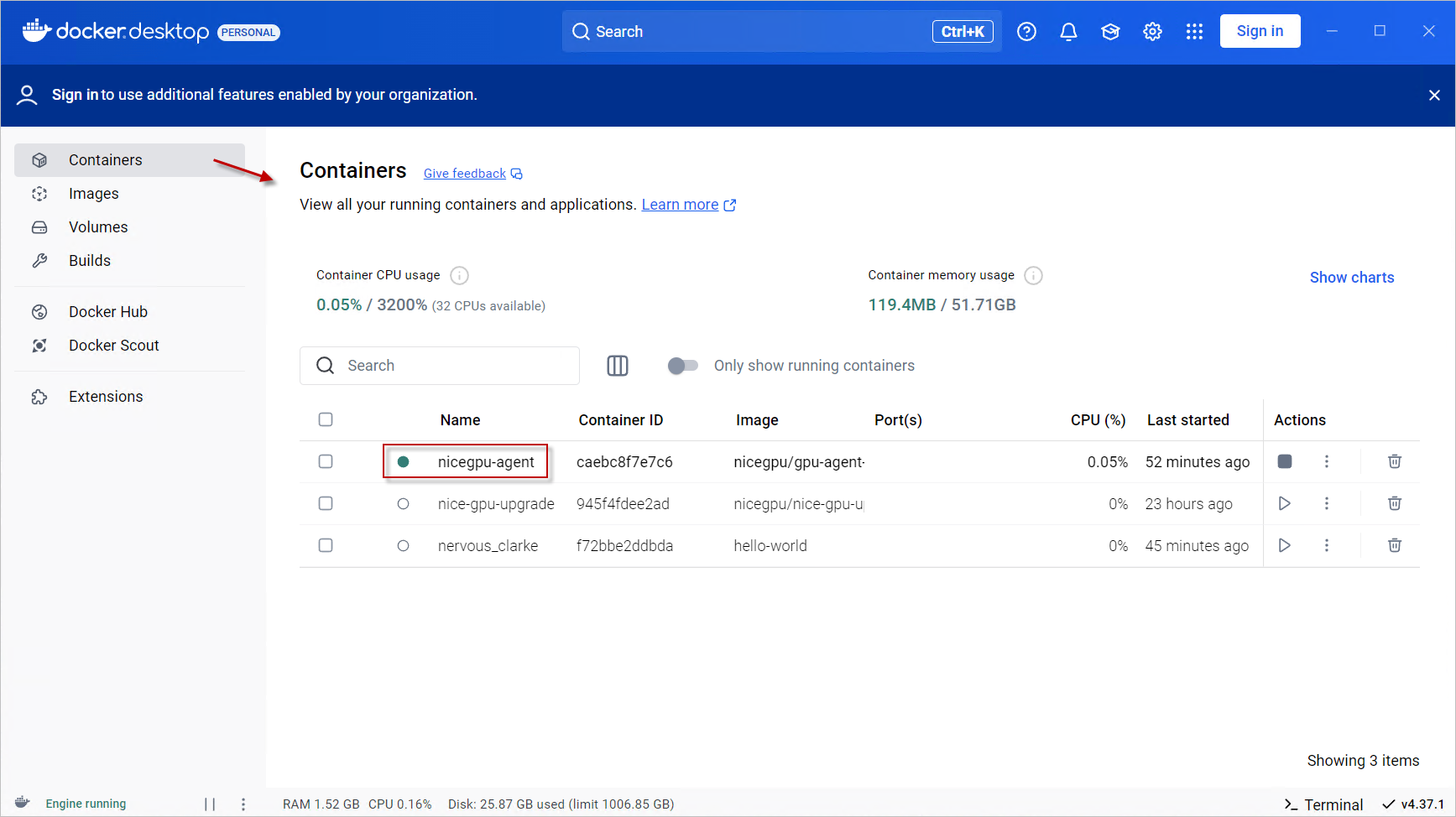
Open the Docker Desktop main interface. You should see the
nicegpu-agentcontainer running.
-
Visit the NiceGPU Workspace page. Check if the registration was successful and see if the
Health Statusof the machine isConnect.

8. How can I test if Docker is installed successfully?
You can execute the following command in PowerShell. If Docker is installed successfully, you should see an output similar to the following image:
docker run hello-world

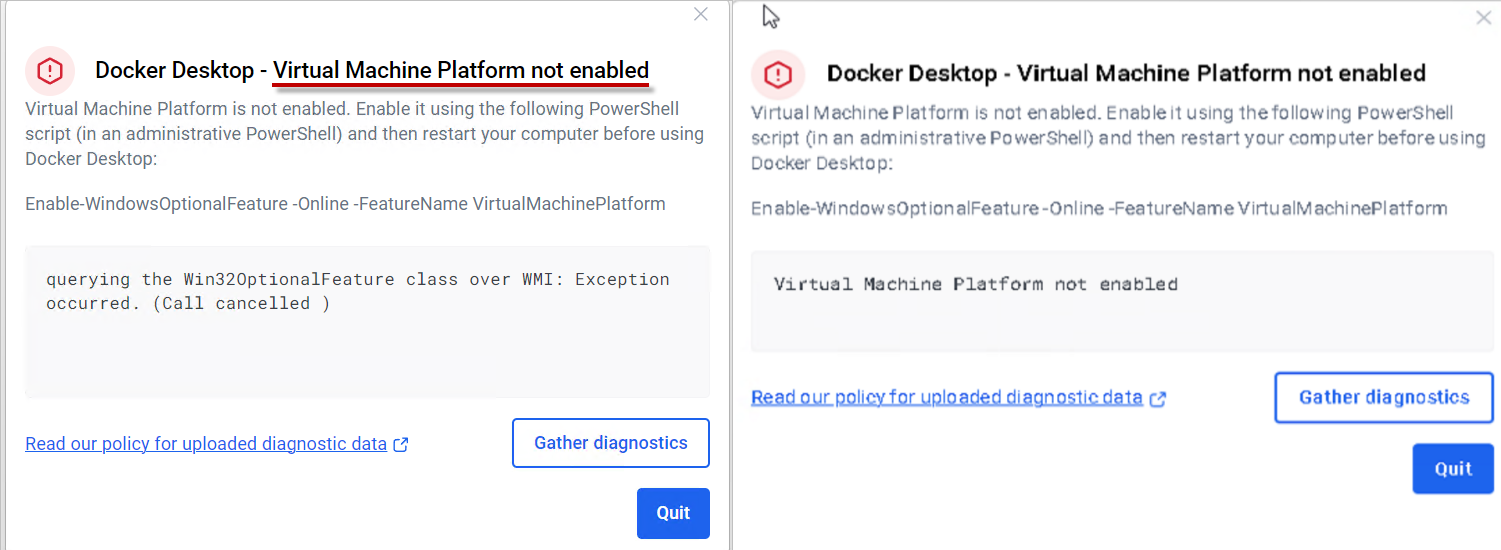
9. Docker Desktop fails to start: Virtual Machine Platform not enabled
Our registration program will automatically enable the Virtual Machine Platform feature for you.
However, the following two situations can still lead to the error Virtual Machine Platform not enabled:
- CPU virtualization is not enabled.
- Caused by a Windows Update.
Check if it is enabled: Use the Task Manager to check if CPU virtualization is enabled.
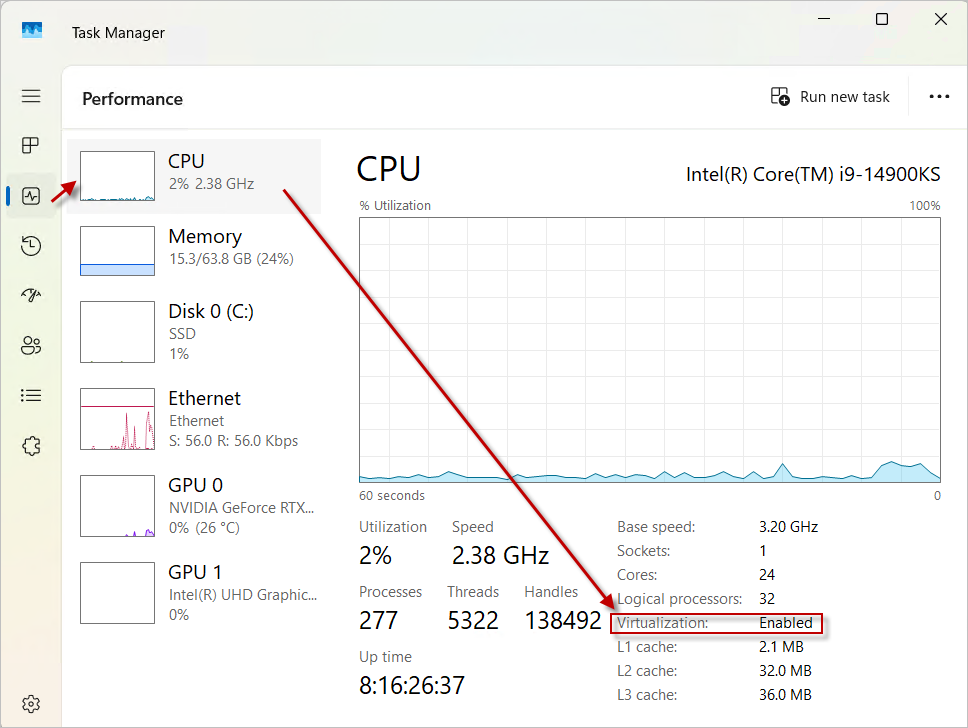
If it shows Virtualization: Disabled, you need to enable it manually in the BIOS/UEFI of your computer.
The following are general steps, which may vary depending on your computer's brand and model:
- Restart your computer: You need to restart your computer first because you usually cannot enter the BIOS/UEFI settings interface while the operating system is running.
- Enter the BIOS/UEFI settings: When the computer starts, press the corresponding key according to the on-screen prompt to enter the BIOS or UEFI settings interface. Common keys include F2, F10, Delete, Esc, or brand-specific keys (e.g., F2 or Delete for Asus computers). If you don't see the relevant prompt during startup, you can refer to the motherboard or computer manual for accurate information.
- Find the virtualization option: Once you are in the BIOS/UEFI settings interface, use the arrow keys to navigate to "Advanced" or directly look for options named "CPU Configuration", "System Configuration", "Northbridge Configuration", etc. Here, you should be able to find settings related to virtualization technology, such as "Intel VT-x", "Intel Virtualization Technology", "AMD-V", etc.
- Enable virtualization technology: Select the corresponding virtualization option and set it to the "Enabled" state.
- Save and exit: After completing the settings, save the changes and exit the BIOS/UEFI settings interface. This is usually done by pressing the F10 key, but the exact operation depends on your system. Then the computer will restart.
- Verify the settings: After the restart, you can use the Task Manager again to confirm if virtualization is enabled.
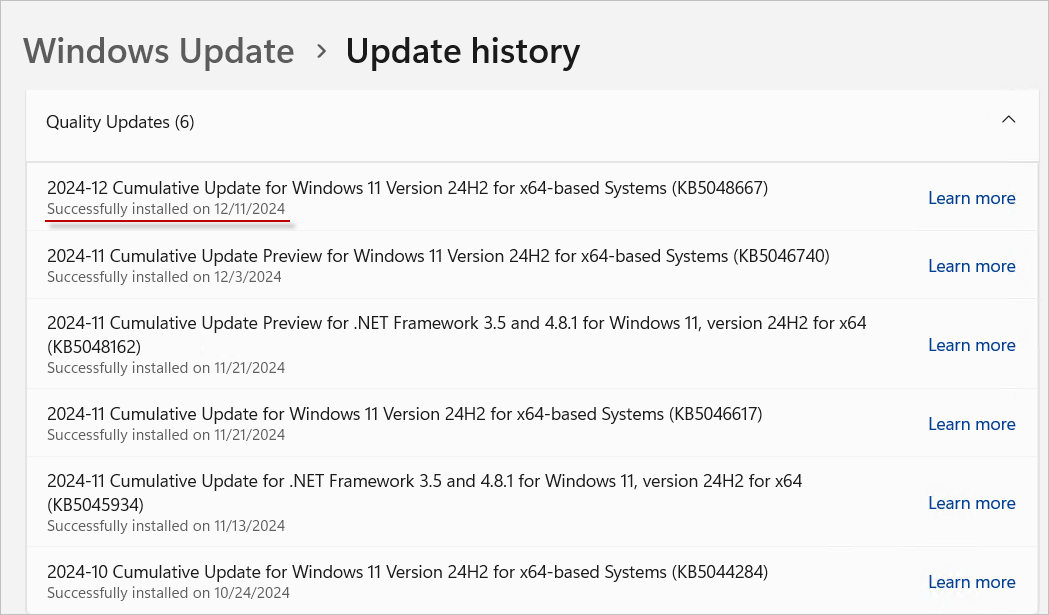
Some Windows Updates may temporarily disable Windows features, causing Docker Desktop to fail to start.
You can check the Windows Update History to confirm recent update records. If you have installed an update recently, try restarting your computer and then start Docker Desktop again.
10. Docker Desktop is unresponsive and cannot start normally
Please refer to the official Docker troubleshooting documentation.
11. Docker Desktop - WSL Update Failed
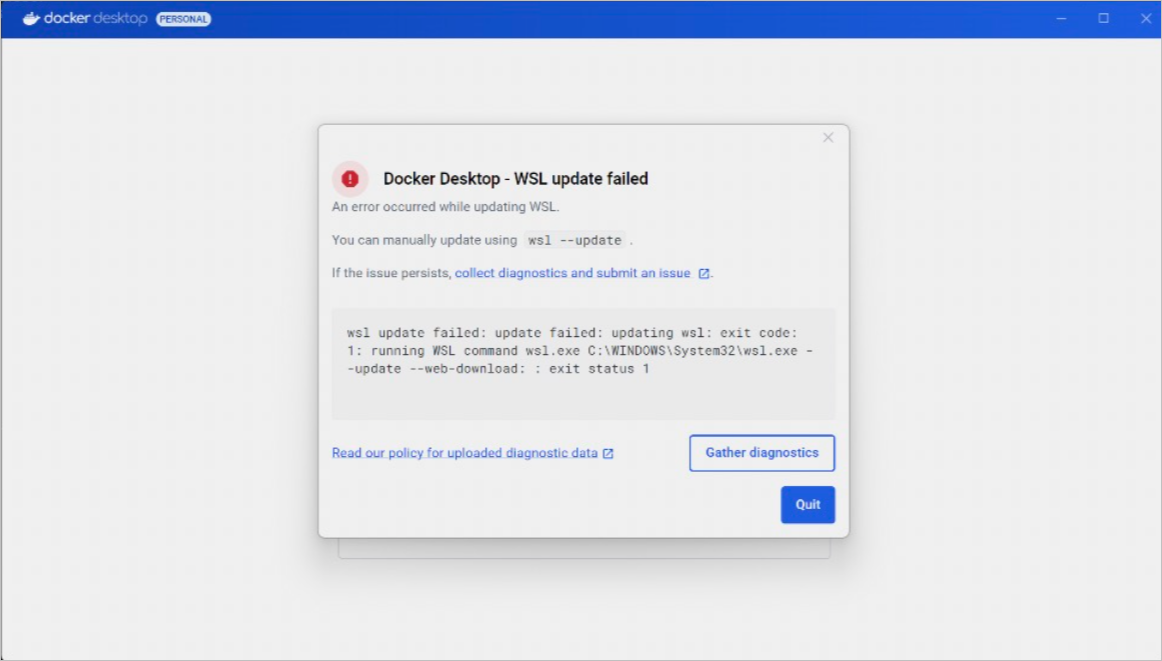
If you encounter this error, it indicates that your system's WSL is not functioning properly.
Please refer to the following checks:
- Ensure your computer has normal internet access.
- Verify your Windows system version: Windows 10 Version 2004 or later (Build 19041 or higher) or Windows 11.
To check your Windows build number: Open "Settings" > "System" > "About", and view the "OS Build" value. -
Confirm WSL feature is enabled
You can check this by running the following command in an elevated PowerShell window to verify if the "Windows Subsystem for Linux" feature is enabled:Get-WindowsOptionalFeature -Online -FeatureName Microsoft-Windows-Subsystem-Linux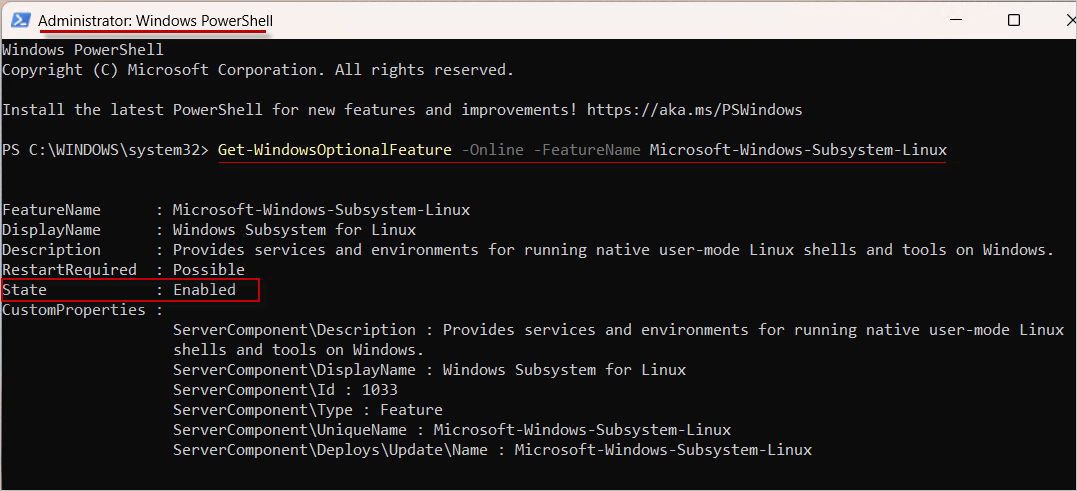
-
Try manually updating WSL:
wsl --set-default-version 2 wsl --update -
If the above steps don't resolve the issue, please refer to Microsoft's WSL Troubleshooting Documentation for further assistance.
12. Docker Desktop is running successfully, but the machine status is Disconnected
This may be because the nice-gpu-agent program is not running properly. This issue is often related to your Docker Desktop settings.
Please check and ensure that the option "Use the WSL 2 based engine" is selected under Docker Desktop Settings -> General.
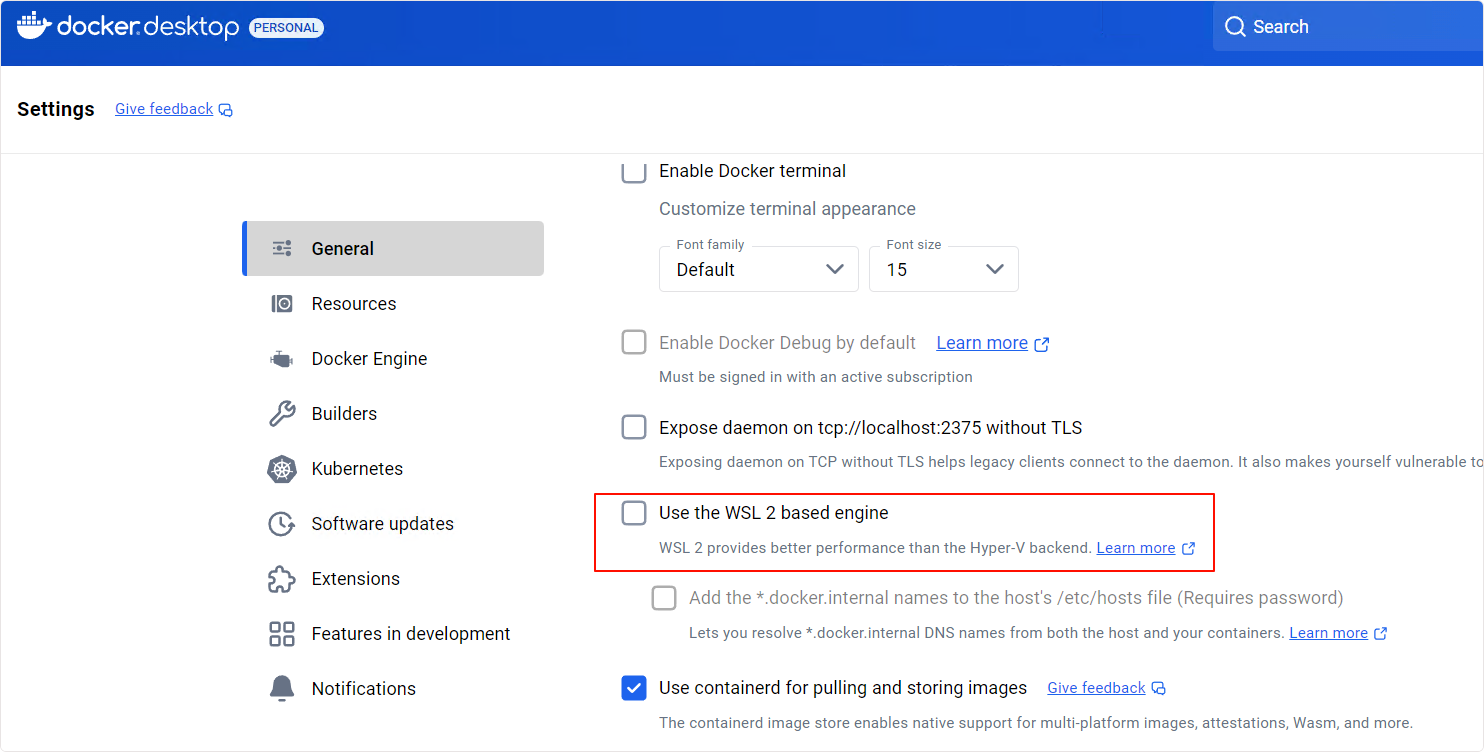
Then, re-run the nicegpu-installer.exe program.
After completing these steps, you should see the nice-gpu-agent running, and your machine status should update to Connected.
13. Docker Desktop Fails to Launch After Upgrading NVIDIA Driver
Before installing the NVIDIA Driver, please close Docker Desktop first. Then restart your computer after completing the driver installation.
If Docker Desktop fails to launch normally after upgrading the NVIDIA Driver, we recommend following these troubleshooting steps:
- Verify Driver Status - Execute the
nvidia-smicommand after restarting your computer to confirm successful NVIDIA Driver installation - Check Docker Status - Try restarting Docker Desktop; if the issue persists, consider reinstalling Docker Desktop or upgrading to the latest version
- Reset Agent Service - Run
nicegpu-installer.exeagain to repair any potential component abnormalities - Confirm Node Status - Visit the NiceGPU Node Management Page to check machine status, ensuring that
PC Statusshows asConnected
Manager & Monitor
1. Does the node monitor detail page display real-time information?
No, it doesn't display real-time information, system data is collected approximately every 30 seconds.
2. Can the earned NCU be used on NiceGPU.com?
No, the earned NCUs cannot be used on NiceGPU.com
3. What do the various statuses on the node management page mean?
-
Status
- Online: Your GPU is online to the NiceGPU network and can receive tasks assigned by NiceGPU.
- Offline: Your GPU is offline to the NiceGPU network and will no longer receive tasks. If a task is currently running, it will continue until completion, after which no new tasks will be assigned.
-
Task Status
- Idle: There are no tasks running on your GPU.
- Running: A task is currently running on your GPU.
- Unknown: NiceGPU is unable to connect to your PC, so it cannot determine the status of any tasks running on your GPU.
-
PC Status
- Connected: NiceGPU is connected to your PC, can retrieve the status of tasks running on GPU, and can assign new tasks.
- Disconnected: NiceGPU cannot connect to your PC, which means it cannot retrieve the status of tasks or assign new ones. This is most commonly due to your PC being turned off or a Windows update preventing Docker Desktop from starting properly.
4. What should I do if the PC status shows "Disconnected"?
If the PC status shows "Disconnected," it means NiceGPU is unable to connect to your PC, and cannot retrieve the status of tasks running on your GPU or assign new tasks. The most common reasons include:
- PC is powered off
- A Windows update caused Docker Desktop not to start properly
To resolve this:
- Check if your PC is powered on
- Ensure Docker Desktop is running properly
If it still shows "Disconnected," please contact support@nicegpu.com.