how to deploy my fine-tuned model
NiceGPU platform provides a Jupyter Minimal Notebook template that by default expose port 11434, which can be used to deploy and use your trained models.
Note: This port is recommended for Development environment only, DO NOT use it in production.
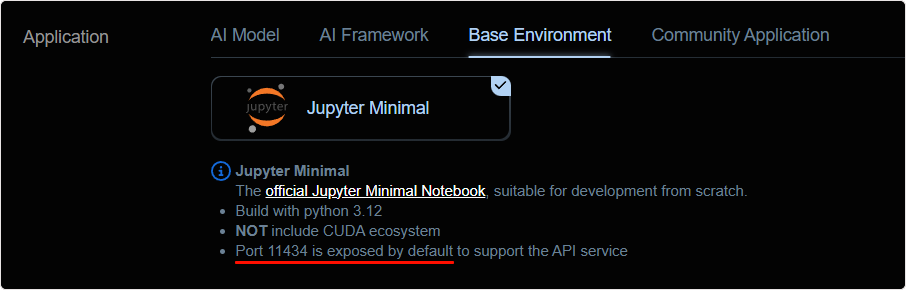
The detailed steps are as follows:
1. Create an Instance
In the New Instance interface, select the Jupyter Minimal template under Base Environment, create an instance, and wait for the instance creation to complete.
2. Train the Model
Once the instance is created, you can open Jupyter Notebook via the Jupter Notebook button under Compute Connection.
Then you can train your model using your own data and methods.
3. Usage
After training the model, you just need to run your model in Jupyter Notebook and listen on port 11434.
Then you can access your service through the Restful API button under Compute Connection.
Notes:
- Due to the single port availability by default, only one API service can be provided simultaneously at this time.
- Before deploying and running the model, please pay attention to the resource status of the machine. (If OOM issues occur, try performing a
Restartoperation on theInstance Listpage)- When listening to the port, use the IP address
0.0.0.0instead of the default127.0.0.1.
4. Using Ollama Model as an Example
The following commands will download Ollama and run a gemma3:1b model:
curl -fSLO "https://ollama.com/download/ollama-linux-amd64.tgz"
tar -xzf ollama-linux-amd64.tgz
OLLAMA_ORIGINS=* OLLAMA_HOST=0.0.0.0:11434 ./bin/ollama serve&
./bin/ollama pull gemma3:1b
./bin/ollama list
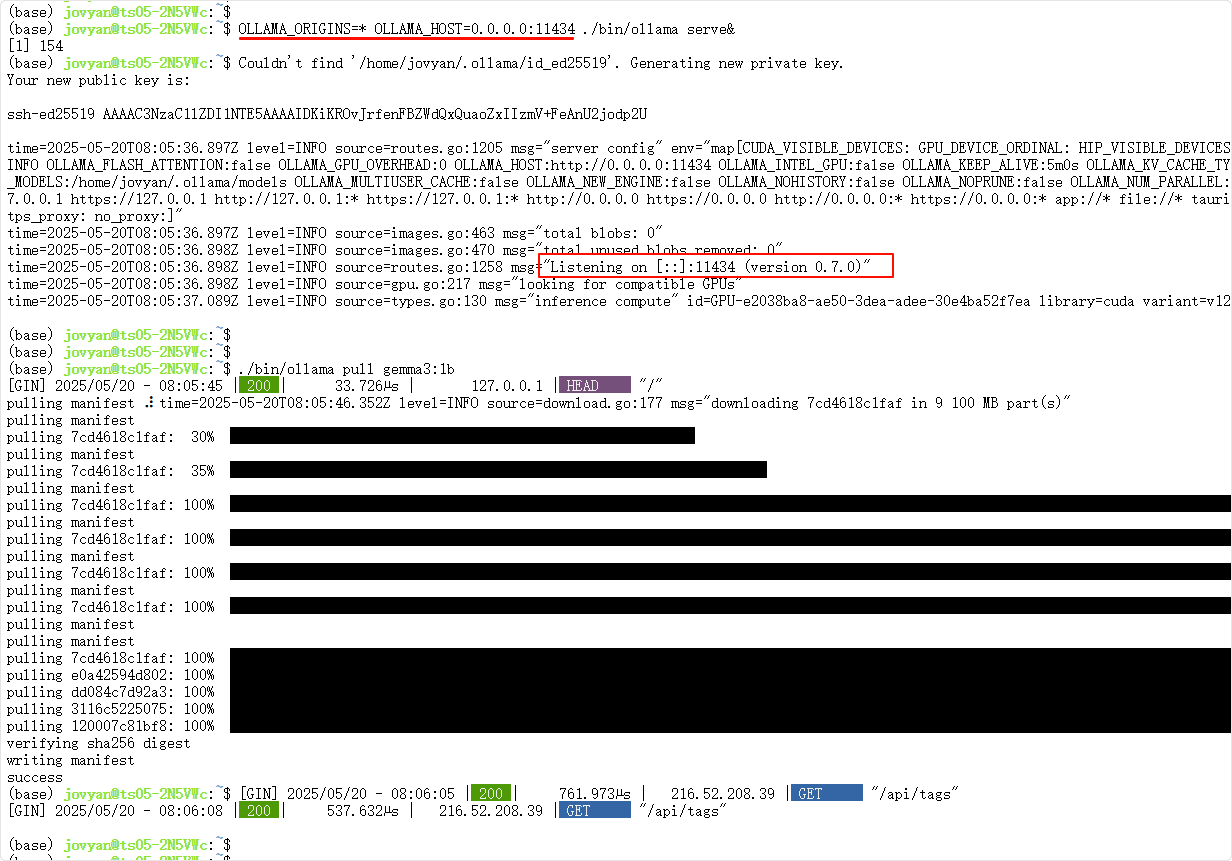
Check the service status:

Then call via Chatbox or Open Web UI:
- Download popular large language model Web UI programs, or use the web version.
- In settings, select
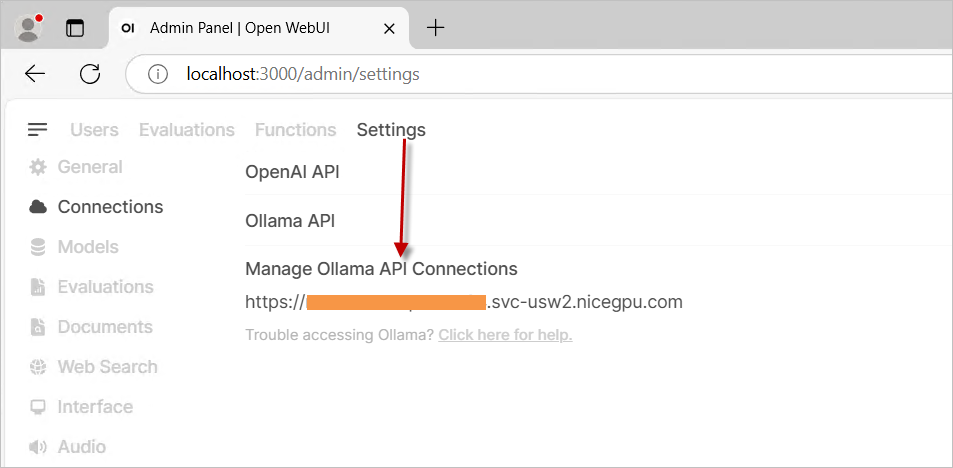
OLLAMA APIas the provider and enter your instance address. - Start using it!
Visit https://web.chatboxai.app to quickly try the Chatbox web version:

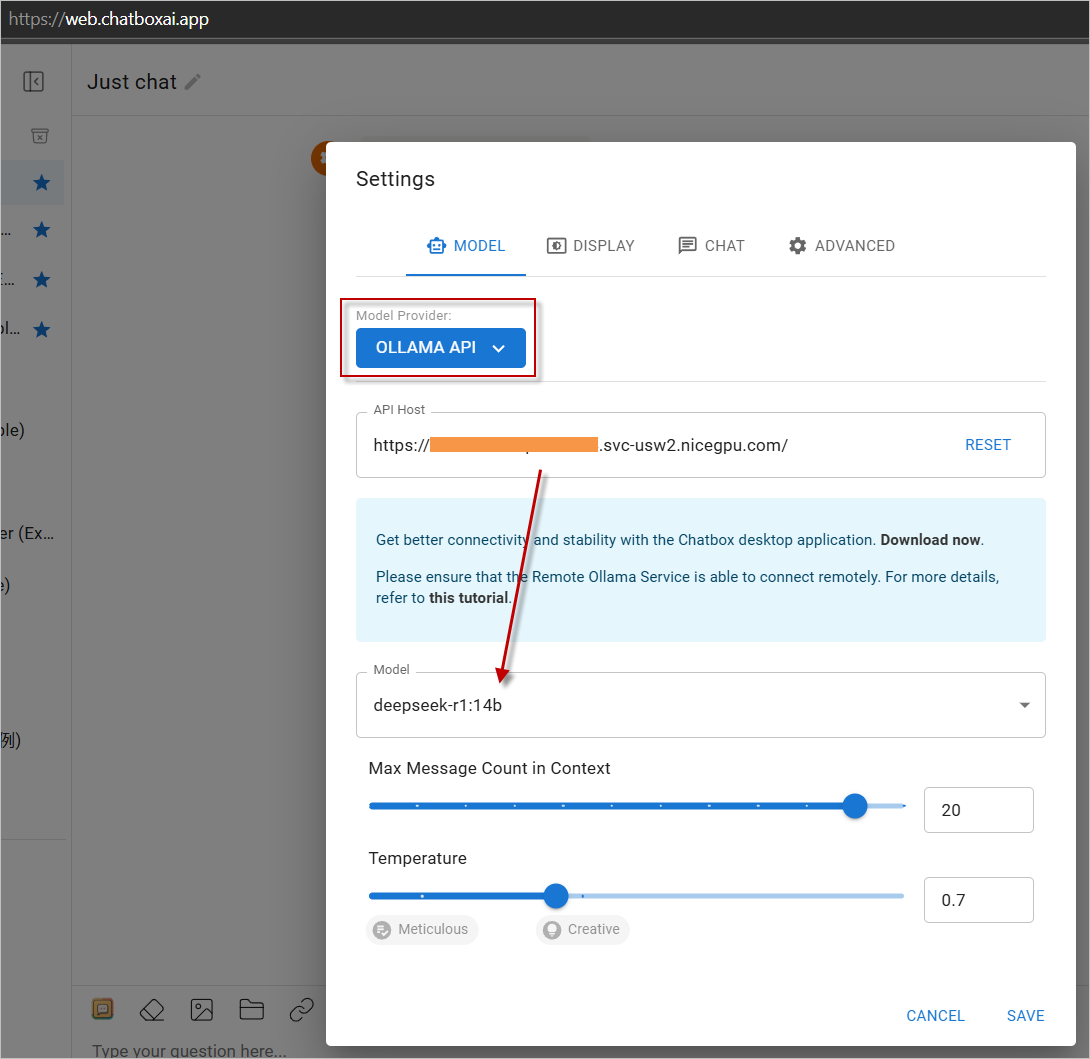
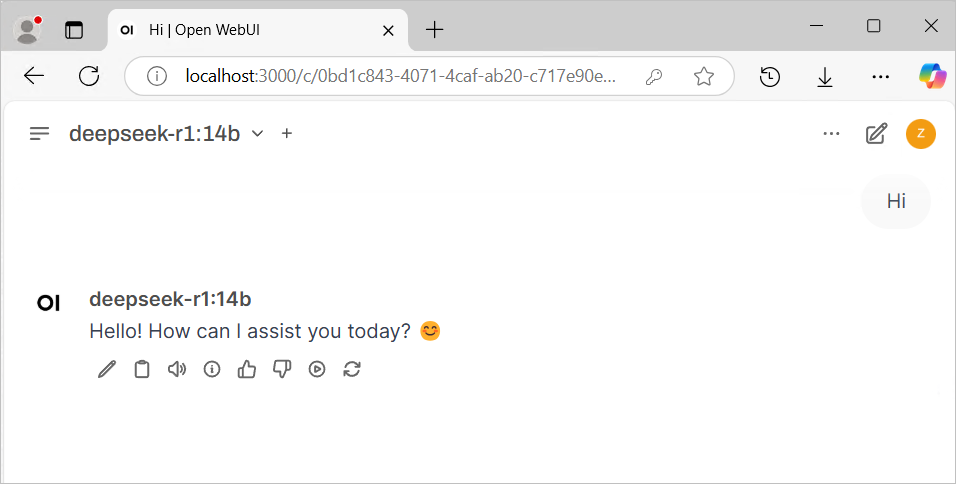
Install the OpenWeb UI program yourself, select OLLAMA API as the provider in the settings, and enter your instance address.